Microsoft Office 365 journaling setup with Area 1
For customers using Microsoft Office 365, setting up a phishing risk assessment with Area 1 and a journaling setup is quick and easy. The following email flow shows how this works:
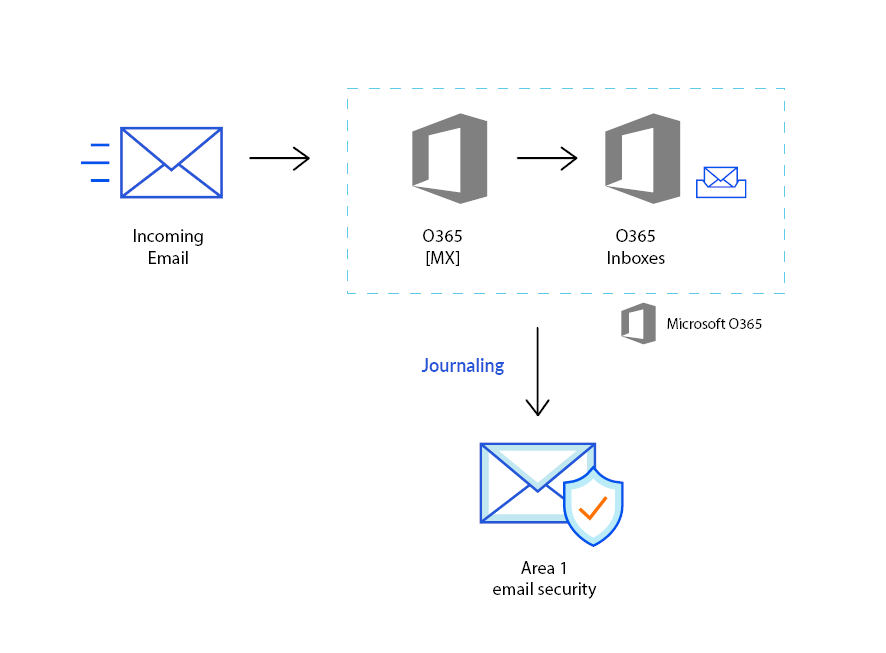
1. Configure connector for delivery to Area 1 (if required)
If your email architecture does not include an outbound gateway, you can skip this step and proceed to step two.
On the other hand, if your email architecture requires outbound messages to traverse your email gateway, you may want to consider configuring a connector to send the journal messages directly to Area 1.
From the Exchange admin center, go to mail flow > connectors.
Select the + button to configure a new connector and open Select your mail flow scenario.
In the From dropdown menu, select Office 365.
In the To drowndown menu, select Partner Organization.
Select Next.
Configure the New connector as follows:
- Name:
Deliver journal directly to Area 1. - Description:
Deliver journal directly to Area 1. - Select the Turn it on checkbox.
- Select the Retain internal Exchange email headers (recommended) checkbox.
- Select Next.
- Name:
Configure the When do you want to use this connector? as follows:
- Select Only when email messages are sent to these domains.
- Select the + button and input
journaling.mxrecord.ioin the configuration pop-up. - Select Next.
In How do you want to route email messages?, select the + button to add the following smarthosts:
mailstream-east.mxrecord.iomailstream-west.mxrecord.io
If you need to enforce traffic through the EU region, use the following smarthosts instead:
mailstream-eu1.mxrecord.io
Select Next.
You need to preserve the default TLS configuration. Review the following settings:
- Make sure the Always use Transport Layer Security (TLS) to secure the connection (recommended) checkbox is selected.
- In Connect only if the recipients email server certificate matches this criteria select Issued by a trusted certificate authority (CA).
Select Next.
Review your new connector configuration and select Next.
To validate the new connector, select the
+button and enteraddress@journaling.mxrecord.io. Select Validade.After the validation completes, you should see a Succeeded message on all taks. Select Save to save your new connector.
Your new connector is now active and showing in Exchange admin center > mail flow.
2. Configure journal rule
From the Exchange admin center, select compliance management > journal rules.
You need to configure an undeliverable journal reports address to be able to continue. If you do not have one, select Select address. Specify a mailbox that will receive any delivery bounces.
Select the
+button to configure a journaling rule as follows:- Send journal reports to: This address is provided by Area 1.
- Name:
Journal Messages to Area 1. - If the message is sent to or received from: Select Apply to all messages from the dropdown. If you want to apply this rule only to some messages, select A specific user or group and choose from the list of users or groups.
- Journal the following messages: Select External messages only from the dropdown.
Select Save to save the journaling and acknowledge the warning indicating that the rule will only apply to future messages.
Your journal rule is now configured and active. It may take a few minutes for the configuration to propagate and start to push messages to Area 1. After it propagates, access the Area 1 portal. The number of messages processed will grow as journaled messages are sent to Area 1.
Create a distribution group in Office 365
Go to the Microsoft 365 admin center.
Navigate to Home > Users > Active Groups.
Select Add a group.
In Choose a group type, select Distribution.
Select Next.
Enter a name for your group.
Select Next > Create Group.
In the Microsoft 365 admin center main page, go to Groups > Active groups, and find the group you have just created.
Select it to add the users you want to have in that distribution group.